I want to thank Andreas over at Mac OS X Screencasts for the excellent screencast he just posted of Pear Note. If you’re looking for something that really shows off some of the features of Pear Note, I’d recommend checking it out.
Pear Note on Mac OS X Screencasts
November 21st, 2010The making of Pear Note 2
August 18th, 2010A big thank you to Mike Rohde, the designer behind the new Pear Note 2 design. He’s got a blog post up today about the making of Pear Note 2. It was great to work with Mike, and I think the results speak for themselves.
Pear Note 2.0
August 9th, 2010I’m pleased to announce the immediate release of Pear Note 2.0. This is the first major revision to Pear Note, and it’s a huge one. This is the kind of update that would usually come with an upgrade fee, but as I said earlier, it doesn’t. This is a free upgrade to all you Pear Note 1 users out there as a way of saying thank you for being an early adopter. All of your feedback has really helped get Pear Note to this point, and I really appreciate it.
I’ll talk about some of the new features in more detail in the coming weeks, but I wanted to briefly enumerate them here.
Sharing
Pear Note 2 includes a new sharing feature, which allows you to create web page versions of your notes to share with anyone with a web browser. These shared notes are fully playable and integrated, just like a normal Pear Note document, meaning that users can use the text of the note to navigate through the recording or slides. You can try out one of these here. Many thanks to Brian Artka for helping out with the web portions of this.
New user interface
The most noticeable change in Pear Note 2 is the completely new user interface, which is designed to make using Pear Note a more pleasant experience. The new interface improves discoverability in the app, and also makes navigating through the timeline much easier. And let’s face it, the old interface wasn’t the prettiest in the world. Many thanks to Mike Rohde for helping to make Pear Note 2 look so good.
Playback speed adjustment
Since so many of you asked for it, Pear Note 2 also includes support for playback speed adjustment. You can use this feature to listen to your notes at faster than real-time to review things more quickly or you can slow things down to make sure you don’t miss anything.
Other improvements
There are a lot of other improvements as well that you can check out. These include support for adding multiple slides files to a single note, much faster search support, and many more.
A bit of a tease
July 16th, 2010It’s been a long time coming, but Pear Note 2 is right around the corner. I hope to release it in early August, but I just can’t keep completely quiet about it any more. So, I thought I’d give you guys a bit of a tease. Pear Note 2 has a bunch of improvements, but the most obvious is the complete redesign that’s gone into it. I’ll talk about the new features and changes soon, but first I wanted to give you a glimpse of the new look.
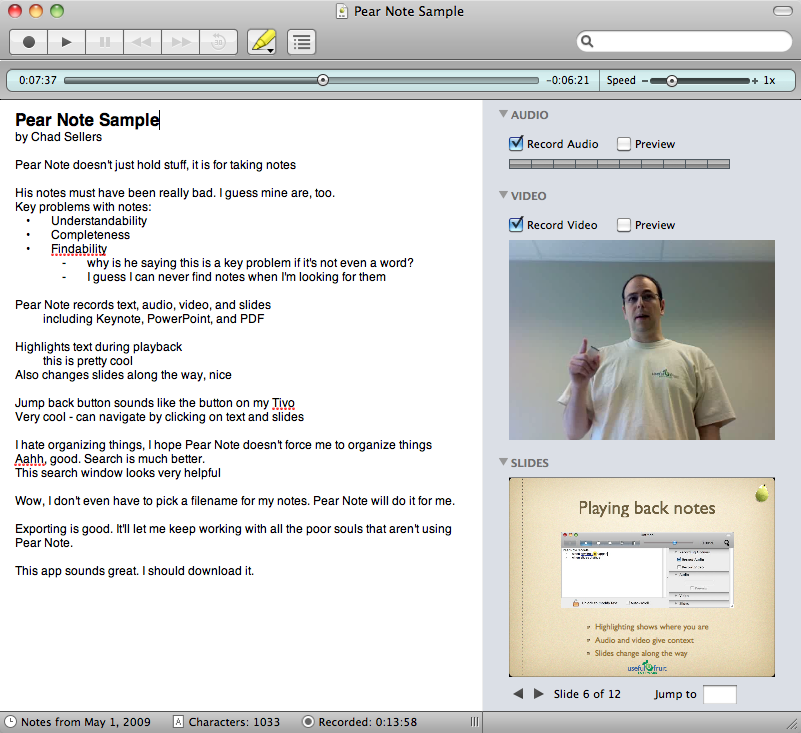
I think it looks great and is much more usable than Pear Note 1. I can’t wait for you guys to get your hands on it.
Oh, and since this will likely be your first question – there is no charge for upgrading from Pear Note 1 to Pear Note 2. In general, major upgrades will come with an upgrade fee, but I’m so grateful to all of you for being early adopters that I couldn’t bring myself to charge you for it.
Pear Note 1.4.2
June 9th, 2010Pear Note 1.4.2 is now out. This update improves error handling when something goes wrong while recording or importing audio/video, which should make the experience when something goes wrong a little smoother. Also improved is the first launch experience, though if you’re reading this you’ve probably launched Pear Note at least once before now  . Also, this has a few little bug fixes. Thanks to all who reported problems.
Pear Note 1.4.1
April 13th, 2010Pear Note 1.4.1 is now released. It’s a minor release to handle recording errors more gracefully and fix some problems that could occur when Pear Note’s trial expires. Also, this includes a new menu item to forget all slide transitions, in case you want to start over and re-record when slide changes happen.
Also, I apologize for not saying more around here of late. I’ve been working hard on some good stuff, which I’ll tell you about fairly soon. For now, rest assured that my silence here indicates good things coming up for Pear Note.
Pear Note 1.4
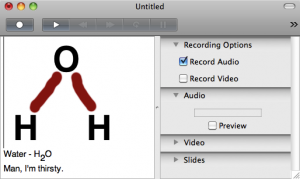
February 15th, 2010Pear Note 1.4 is now out. Yes, I finally listened to all your requests and added image support to Pear Note. So, now you can drag in your diagrams of molecular structure, your pieces of art, or perhaps just a snapshot of the whiteboard your team just drew all over.
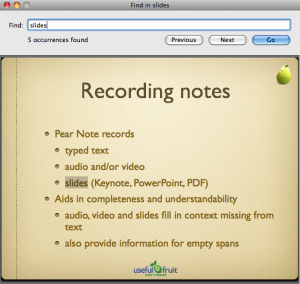
Also included in this release is the ability to Find in Slides. You could previously Find within the text of a document, but not the slides. The new Find in Slides menu item means you can locate things in the slides as well as in the text.
There are numerous other improvements, including a menu item for saving the default note location, the ability to export to RTFD, and a bunch of other improvements and refinements. I hope you enjoy it.
Indie+Relief
January 20th, 2010
As likely all of you know, Haiti was devastated by a major earthquake last week. Many of us software developers wondered how we could help. Then Justin Williams of Second Gear Software came up with an idea. He thought he could donate all the sales of his software for a single day to help the relief effort, and invited other indie software developers to band together with him to do the same. This became Indie+Relief, which now has well over 100 developers participating, including Useful Fruit.
The idea is simple, 100% of income from today’s sales goes to the relief effort in Haiti. Each developer chooses which charity they will donate their income to. I have chosen UMCOR, the relief organization associated with the United Methodist Church. It’s a great organization that I’ve volunteered with in the past. They are quick to respond, as well as very effective and efficient. This is because they get so much volunteer labor and the fact that the church funds their administration, so 100% of all donated funds go straight to the relief effort.
So, if you’ve been considering purchasing or know someone who has, today is a good day to do it. Also, please check out the other apps that are part of Indie+Relief. You might find something else useful to you and help some people in need in the process.
Positioning windows
January 15th, 2010Pear Note uses separate windows for separate documents as well as for slides and video (if you double-click them to make them bigger). This is by design – by making these things separate windows you are free to position them however you like. Also, tools like Exposé are useful when you put things in separate windows. This works pretty well.
That said, lining up windows can be a bit painful, to the point that people often won’t do it and they’ll have windows partially overlapping. I’ve long wrestled with this, but recently the folks at Irradiated Software released some apps that are great at making this easier. These tools all allow you to line up windows with very simple actions. I’m using SizeUp myself, which gives you a bunch of keyboard shortcuts to position a window on the left, right, top, or bottom half of the screen, as well as into the quadrants (pictured below) and on specific monitors. They’ve also got a lite version of it called TwoUp and one that is mouse driven rather than keyboard driven called Cinch.
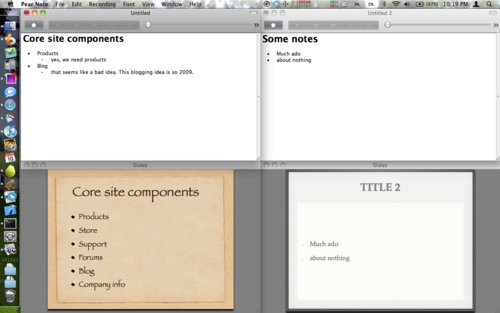
I don’t know the developer or have any vested interest in this software, but I think it’s a great tool that is especially useful with Pear Note. If you find yourself looking for a tool to make it easier to line up notes next to one another or slides and video, check them out.
Taking notes on your family members
December 29th, 2009A couple of days ago, my good friend Chris Ashworth (of QLab fame) tweeted this:
Copying down a cinnamon bun recipe over the phone. @PearNote is perfect for this. Once again a hat tip to @c_had for a great app.
I’d never thought of using Pear Note for taking down a recipe over the phone, but it sounds like a great idea to me.
This reminded me of this past summer. My family and I went to a family reunion with 50 or so relatives that I hadn’t seen in more than a decade. Before the reunion, I got a crash course from my mom on the family tree. I copied down what I could as she explained who everyone was and what their relationships were, but I only got a skeleton written. Fortunately, I was using Pear Note to take these notes, including recording audio. So, later when I wanted to figure out the details about a particular person, I just clicked on their name and listened to my mom’s description of them.
Pear Note is great for taking notes in professional and academic settings, but don’t forget about the possibility of using it with your family as well. It may seem weird at first to record your mom or your grandfather, but I think you’ll find it very helpful.